A gaming PC is built to handle heavy workloads, yet even powerful rigs can get hot sometimes too hot. When this happens, performance drops, games stutter, and components wear out faster. Fortunately, most overheating issues aren’t caused by failing hardware. Instead they usually come from small problems you can fix yourself. In this guide, you’ll learn how you can fix pc overheating in step by step.
How to Fix an Overheating Gaming PC
Clean Your PC Thoroughly
Regular cleaning can instantly drop temperatures by 10–20°C.
How to clean it:
- Use compressed air to remove dust
- Clean intake filters
- Wipe surfaces with a microfiber cloth
Overall, doing this every 1–3 months helps maintain stable temperatures.
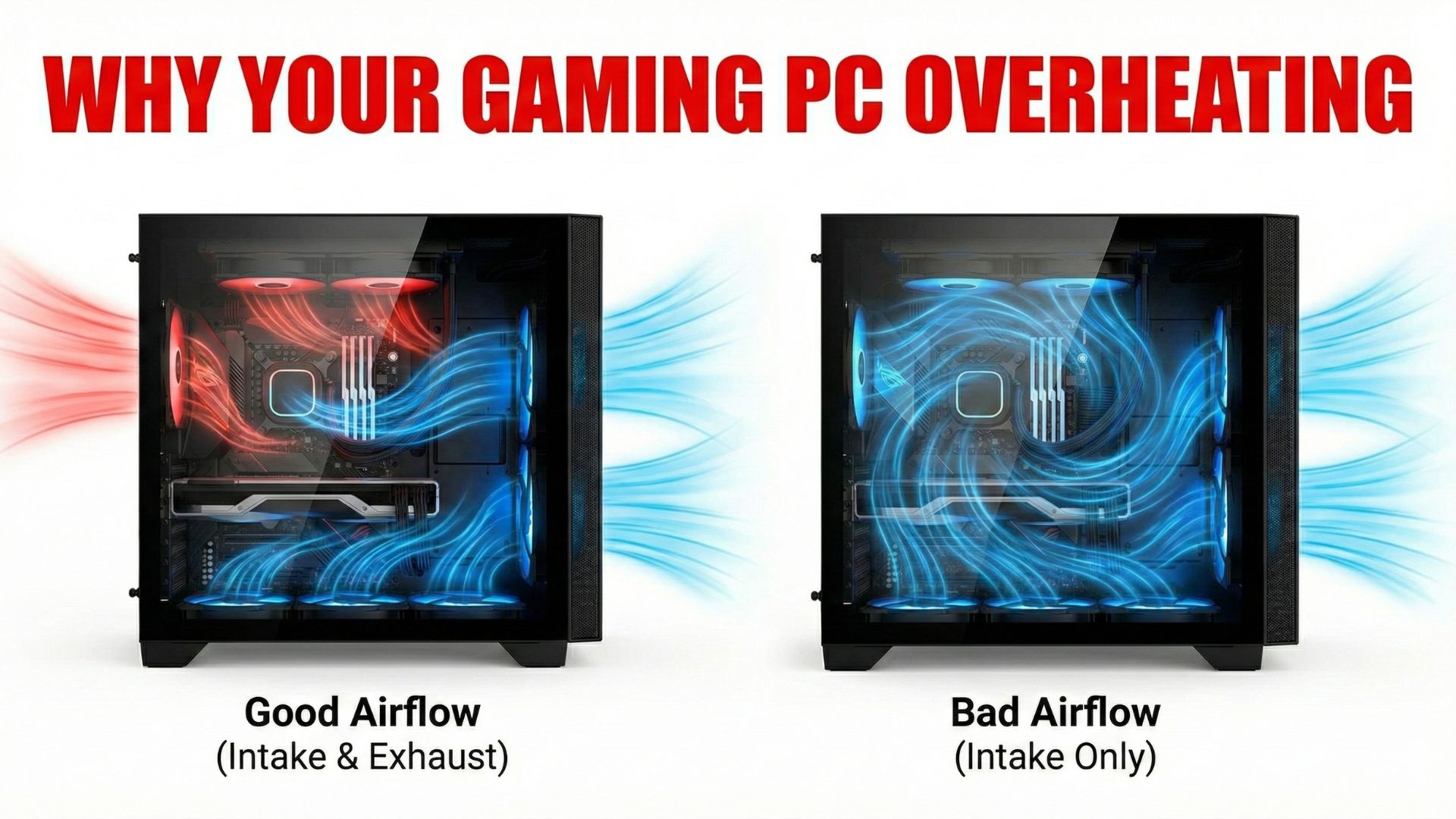
Improve Airflow
Good airflow equals cooler components. Therefore, optimizing your fan layout is one of the easiest ways to reduce heat.
Recommended improvements:
- Add at least one intake and one exhaust fan
- Use a front-to-back or bottom-to-top airflow pattern
- Avoid placing your PC inside a closed cabinet
By improving airflow, you can dramatically reduce system heat.
Replace or Reapply Thermal Paste
If your PC is a few years old, fresh thermal paste can make a noticeable difference.
Tips:
- Use high-quality thermal paste
- Apply a pea-sized drop in the center
- Let the cooler pressure spread it naturally
In many cases, this alone can lower CPU temperatures significantly.
Control Your Room Temperature
Your PC can’t cool properly in a hot room. Thus lowering room temperature helps immediately.
Try these:
- Turn on AC or a fan
- Keep your PC away from walls or heat sources
Consequently your entire system stays cooler.
Adjust Your Overclocking Settings
If you’re overclocking, try reducing voltage or clock speeds. Often, this fixes overheating instantly.
Alternatively, you can undervolt using tools like:
- Intel XTU
- AMD Ryzen Master
- MSI Afterburner
Surprisingly undervolting can reduce heat without performance loss.
Upgrade Your Cooler
If your cooler is outdated or failing, upgrading is a smart solution.
CPU options include:
- Better air coolers
- 240mm or 360mm AIO liquid coolers
GPU options include:
- Custom fan curve adjustments
- Replacing thermal pads (advanced users only)
Ultimately stronger cooling extends hardware lifespan.
Improve Cable Management
Loose cables can block airflow. Therefore routing cables neatly helps airflow move through the case more easily.
Use Software to Monitor Temperatures
Regular monitoring helps you catch overheating before it becomes severe.
Recommended tools:
- HWMonitor
- MSI Afterburner
Ideal temperatures while gaming:
- CPU: 60–80°C
- GPU: 65–85°C
If temperatures pass 90°C, immediate action is needed.
Final Thoughts
Overheating doesn’t mean your gaming PC is dying instead, it usually means it needs proper maintenance. By cleaning your PC improving airflow refreshing thermal paste and upgrading cooling when needed you can keep your system running fast and quiet. Ultimately a cool PC performs better lasts longer and gives you a smoother gaming experience.