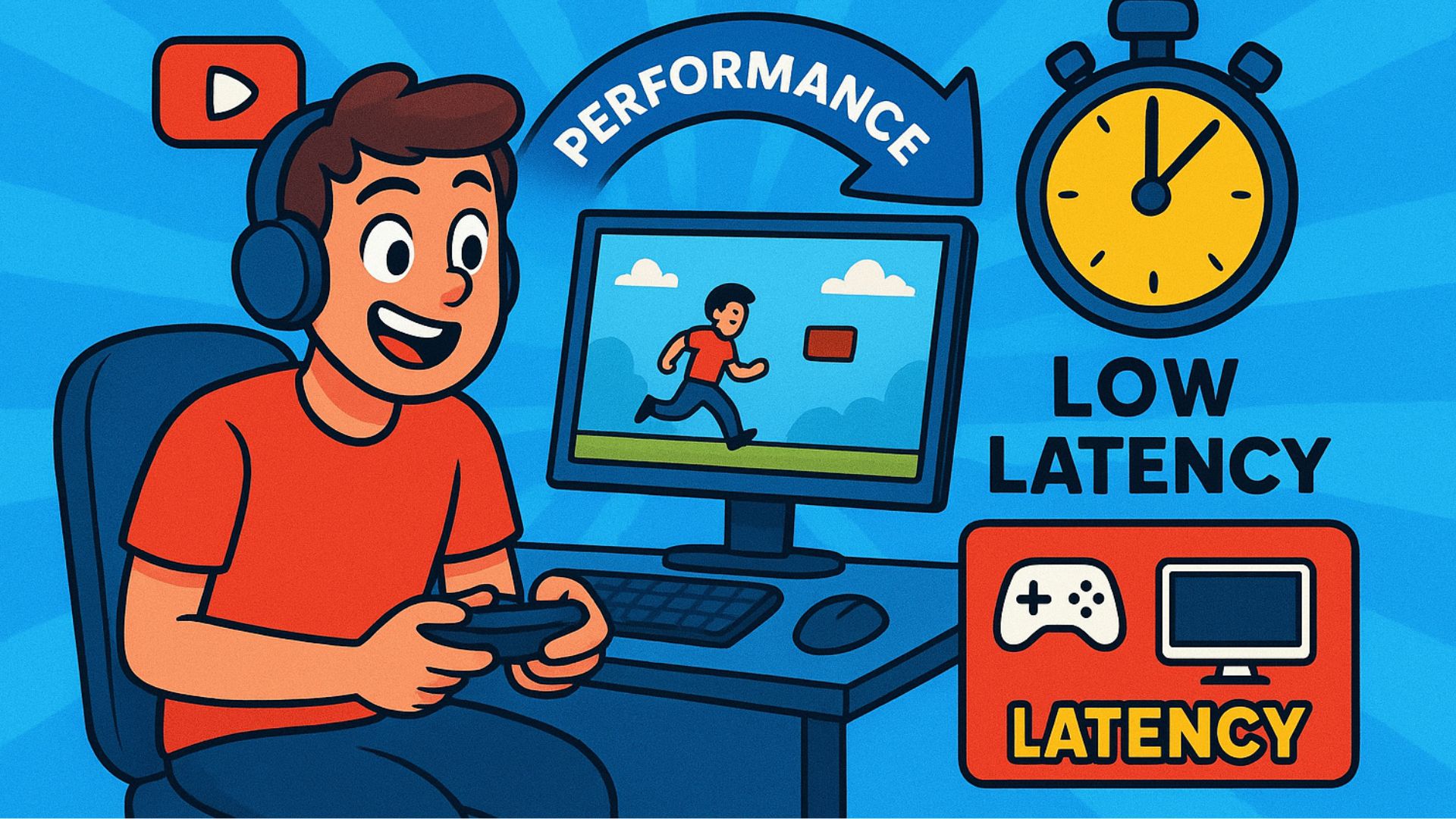
Input delay can completely ruin your gaming or productivity experience especially when screen recording or streaming. Every millisecond matters. However, the good news is that you can significantly reduce this delay with the right settings and habits. In this guide, you’ll learn why input lag happens, and more importantly, how to fix it on Android, Windows, and streaming devices.
🎮 What Causes Input Delay During Recording or Streaming?
Before you tweak settings, it’s important to understand the root causes. Typically, input delay happens because:
- 🎥 High-resolution screen recording consumes CPU & GPU.
- 📺 Streaming apps compress real-time video, causing latency.
- 📱 Heavy background apps eat up system resources.
- 🔌 Wireless controllers or peripherals add extra milliseconds of delay.
- 🔄 Slow refresh rates create visual misalignment between inputs and display.
Knowing these causes helps you apply the right fixes more effectively.
⭐ Best Ways to Reduce Input Delay While Recording or Streaming
Below are the most effective methods you can follow. Each tip is practical and works on most devices.
1. Close Background Apps
Although simple, this step is often overlooked. Background apps use CPU, GPU, and RAM, which leads to more input lag.
👉 Close browsers, heavy apps, game launchers, or editing tools before recording.
2. Lower Your Recording Resolution
While 1080p or 4K looks great, it significantly increases processing load.
Try lowering to:
- 720p for mobile devices
- 1080p for PCs when gaming
- 30fps instead of 60fps (if quality is not critical)
This reduction immediately improves responsiveness.
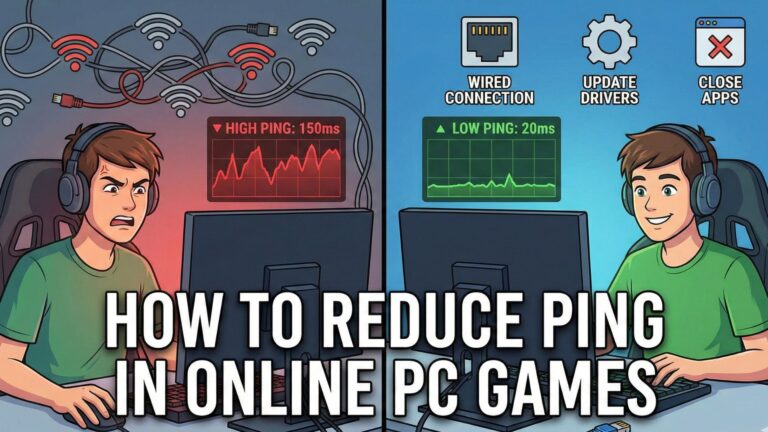
3. Use Wired Connections (When Possible)
Wireless always adds some delay. Therefore:
- Use wired controllers.
- Use USB tethering for internet while streaming.
- Prefer HDMI capture over Wi-Fi casting.
As a result, inputs reach the device faster and more consistently.
4. Enable High Performance Mode
Most devices offer a performance mode that prioritizes speed.
On Android:
- Go to Battery & Performance → Performance Mode
- Enable High Refresh Rate (90Hz / 120Hz)
On Windows:
- Control Panel → Power Options → High Performance
This reduces throttling and makes everything more responsive.
5. Reduce Display Latency
For gamers:
- Turn on Game Mode on your monitor or TV.
- Turn off motion smoothing (like TruMotion, MEMC, etc.).
- Use gaming displays with low input lag.
For mobile:
- Enable touch sampling boost if your device supports it.
6. Disable Device Overlays
Floating bubbles, chat heads, notification overlays, and background filters can slow down screen capture.
Turn off:
- Messenger bubbles
- Screen color filters
- Floating toolbars
- Battery savers
- Live wallpapers
These small tweaks reduce CPU interruptions.
7. Lower Stream Bitrate
If you’re streaming:
- Lower from 6000 kbps → 3500 kbps (common for mobile/1080p)
- Reduce output resolution from 1080p → 720p
This makes real-time encoding smoother and reduces buffering.
8. Improve Network Stability
Streaming requires a stable network. Instead of focusing only on speed, prioritise low latency.
Try:
- Using 5GHz Wi-Fi instead of 2.4GHz
- Sitting closer to the router
- Disconnecting devices that hog bandwidth
- Restarting the router before streaming
9. Keep Your Device Cool
When your device overheats, it throttles the CPU/GPU. That instantly causes input delay.
To avoid this:
- Don’t use a case while recording
- Keep the device on a cool surface
- Use a cooling fan if gaming heavily
10. Optimize OBS or Streaming Software (PC)
If you’re using OBS/XSplit:
- Use NVENC encoding (NVIDIA) or AMF (AMD)
- Lower canvas resolution
- Set FPS to 30 if lagging
- Close preview window during gameplay
This greatly reduces the load on your CPU.
🎯 Final Thoughts
Reducing input delay during screen recording or streaming is all about balancing performance and quality. If you optimize your recording resolution, improve your network, use wired connections, and disable unnecessary background tasks, you’ll instantly notice smoother responsiveness.
Whether you’re gaming, teaching, or creating content, these tips will help you work and play without frustrating lag.