PlayStation’s Remote Play is incredibly useful, especially when you want to enjoy your PS5 or PS4 games on the go. However, when lag, stuttering, or frame drops appear, the experience quickly becomes frustrating. Fortunately, most lag problems are caused by a few common issues, and with the right adjustments, you can fix ps remote play and make smooth again.
In this guide, we’ll walk through every reliable way to reduce and fix ps remote play lag on both mobile and PC, using clear, practical steps.
1. Update Everything Before You Start
Before you jump into network changes, it’s best to begin with updates. Outdated software can easily trigger random lag spikes or disconnects.
Make sure you update:
- Your PS5 or PS4 system software
- The PS Remote Play app on your phone or PC
- Your Android/iOS or Windows/macOS version
After updating, restart all devices. Surprisingly, this simple step fixes lag for many players.
2. Switch to a 5GHz Wi-Fi Network
Next, consider your Wi-Fi band. Although 2.4GHz Wi-Fi has a longer range, it is slower and far more crowded. As a result, Remote Play may freeze or delay inputs.
5GHz Wi-Fi gives you:
- Lower input delay
- Higher speed
- Less interference
On console go to:
Settings → Network → Settings → Set Up Internet Connection → Wi-Fi → Choose 5GHz.Be sure your phone or PC is using the same 5GHz network as well.
3. Move Closer to the Router
Even if you’re using 5GHz, physical distance still matters. Walls, furniture, and appliances can weaken the signal and create lag.
For the best results:
- Place your PS5/PS4 close to the router
- Keep your phone or PC in the same room
- Avoid barriers like thick walls
A small adjustment here often brings an immediate improvement.
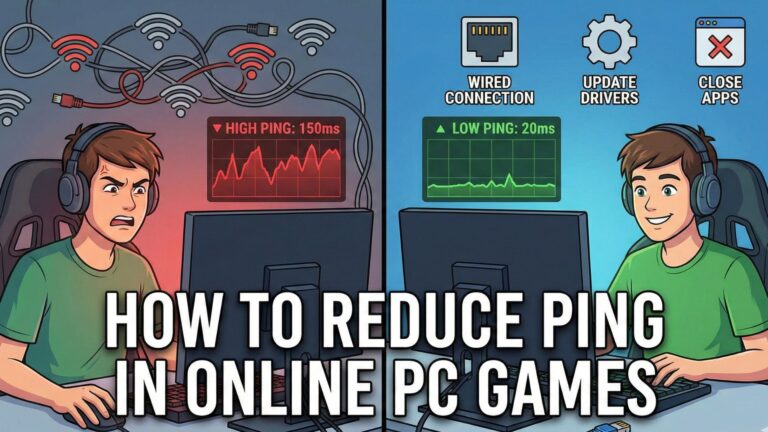
4. Use an Ethernet Cable for the Console
However, if you want the most stable connection, a wired setup is even better. Ethernet removes Wi-Fi interference entirely.
Try this setup:
- PS5/PS4 → Ethernet → Router
- (Optional) PC → Ethernet → Router
Even if only your console is wired, Remote Play becomes noticeably smoother on mobile devices.
5. Lower Remote Play Streaming Quality
If your network still struggles, lowering the video quality can help. Although everyone wants the sharpest possible resolution, smoother gameplay is usually more important.
On the Remote Play app:
Settings → Video Quality → Resolution → Choose 720p or 540p.You can also switch Frame Rate from “High” to Standard when needed. Lower settings may not look perfect, but they help eliminate lag.
6. Reduce Network Traffic in Your Home
Often, your console isn’t the problem your home network is. Heavy internet usage from others can easily cause Remote Play lag.
Watch out for:
- 4K/8K streaming
- Large game or software downloads
- Cloud backups like Photos or Videos
Whenever possible, pause these activities to give Remote Play more bandwidth.
7. Disable Battery Saving Features on Mobile
On mobile devices, power-saving tools often limit performance in the background, which can introduce lag.
Android, disable:
- Battery Saver
- Adaptive Battery
- Background activity restrictions
iPhone, turn off:
- Low Power Mode
Once disabled, the app runs more freely, and Remote Play feels more responsive.
8. Improve Device Performance on Mobile & PC
Sometimes lag comes from your device itself. If your phone or computer is overloaded, Remote Play will struggle.
Mobile:
- Close unused apps
- Turn off screen recording or overlays
- Enable “Game Mode” if available
Windows/Mac:
- Close unnecessary programs
- Exit apps like Chrome that eat RAM
- Use “High Performance” mode on Windows
After reducing background load, the stream becomes much smoother.
9. Enable UPnP or Forward Required Ports
If you keep seeing connection warnings, your router may be blocking Remote Play traffic. Fortunately, the fix is simple.
Steps:
- Log in to your router
- Enable UPnP
- If unavailable, manually open these ports:
- TCP: 9295, 9296, 9297
- UDP: 9303
With proper ports open, remote connections (outside your home) become much more stable.
10. Try a Mobile Hotspot as a Test
In some cases, your home Wi-Fi might be the real issue. Surprisingly, a strong 4G/5G hotspot can outperform a weak router.
You can try:
- PS5/PS4 → Home Wi-Fi
- Phone/Tablet → 5G hotspot
or the opposite.
If the lag disappears, then your router needs an upgrade or reconfiguration.
11. Rebuild the PS5 Database (Advanced Fix)
Finally, if your PS5 feels slow overall, a corrupted database may be contributing to lag.
To rebuild database:
- Turn off your PS5 completely
- Hold the power button until you hear the second beep
- Choose Rebuild Database in Safe Mode
This does not delete your data. Instead, it organizes system files and improves responsiveness.
Final Thoughts
Although Remote Play lag can be annoying, it’s usually fixable with a few simple changes. By switching to 5GHz Wi-Fi, using Ethernet, lowering your stream quality, and reducing background usage, you can dramatically improve your gaming experience. And with even more adjustments like disabling battery savers or enabling UPnP Remote Play becomes smooth on both mobile and PC.