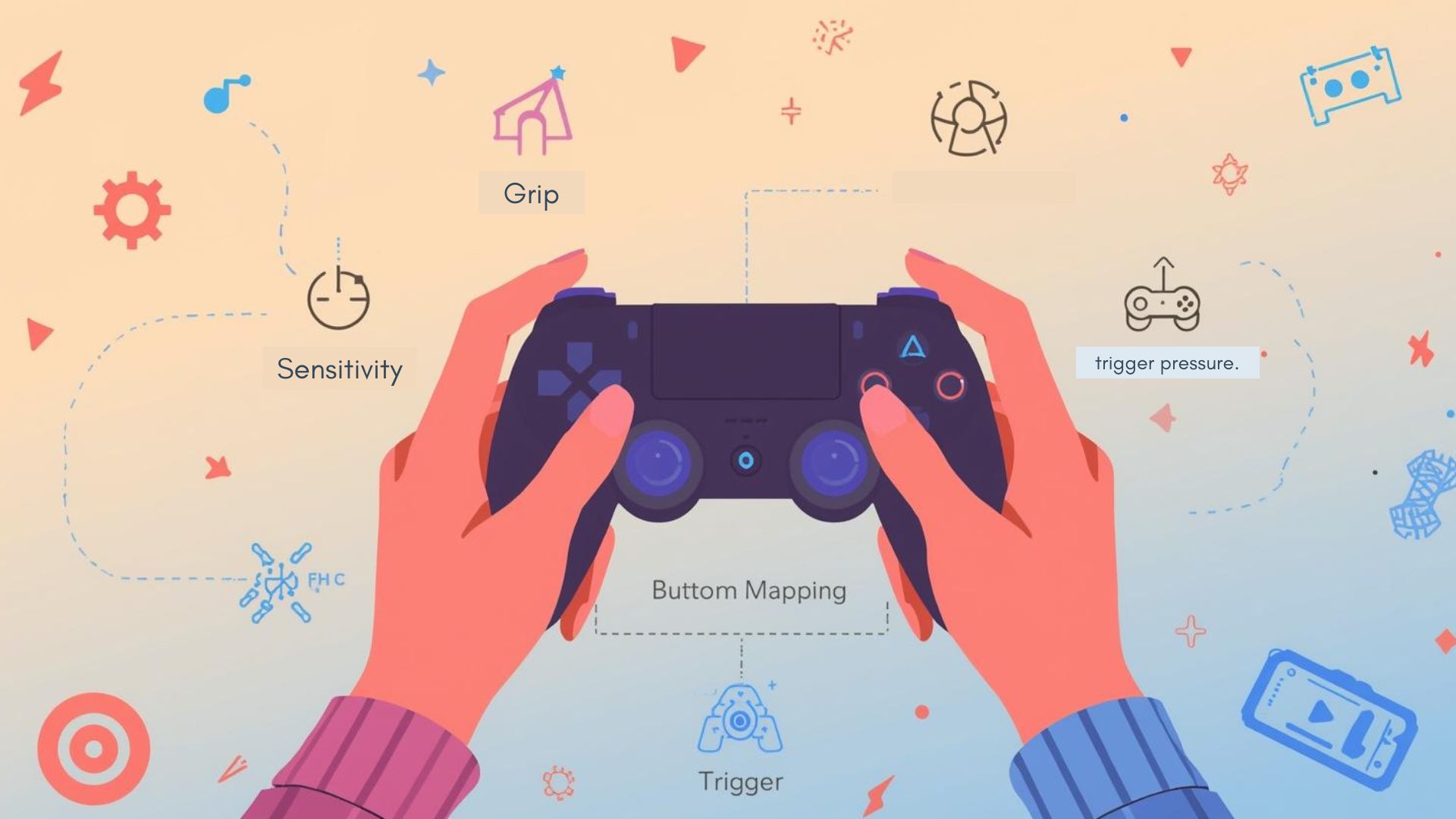
Whether you play shooters, racing games, fighting games, or open-world adventures, your controller sensitivity settings directly shape how well you perform. Although many players stick to default options, optimizing sensitivity, mapping, grip, and button response can dramatically transform your gameplay.
1. How to Optimize Controller Sensitivity for Different Game Genres
Sensitivity settings decide how fast your character turns, aims, or reacts. Because each genre demands different movement patterns, you should always adjust sensitivity based on the type of game you play.
🎮 FPS / Shooter Games
- Use medium to low sensitivity for accurate aiming.
- Start with a balanced value, then lower it until recoil feels controllable.
- Increase ADS (aim-down-sight) sensitivity slightly for faster target switching.
Tip: Gradually fine-tune instead of making big jumps; this keeps muscle memory stable.
🏎️ Racing Games
- Lower steering sensitivity for smoother turns.
- Increase trigger sensitivity if your controller supports analog triggers, which helps with precise throttle and braking.
🥊 Fighting Games
- Use high directional sensitivity for faster movement inputs.
- Ensure diagonals register consistently for combos.
Because different genres have different pacing, adjusting sensitivity improves accuracy while reducing wasted movement.
2. The Best Input Mapping Layouts for Mobile FPS, Racing, and Fighting Games
Since mobile games often have unique control schemes, the right mapping improves comfort and reaction time.
🔫 FPS Layout
- Place reload and crouch on buttons that are easy to reach but not easy to press accidentally.
- Keep jump and slide on shoulder buttons for quick mobility.
- Set ADS and fire on triggers for natural aiming.
🏁 Racing Layout
- Assign throttle and brake to analog triggers if available.
- Map camera look to the right stick for easier cornering and stabilization.
- Avoid mapping essential racing controls to face buttons, as that forces your thumb off steering.
🥋 Fighting Games
- Put light/medium/heavy attacks on face buttons.
- Use shoulders for special moves or macros, improving combo consistency.
- Configure the D-pad as primary movement input for precise directional control.
Mapping should match your playstyle while allowing quick access during intense moments.
3. How Trigger Sensitivity Affects Racing and Shooting Games
Trigger sensitivity influences how quickly inputs are registered and how smoothly analog values respond.
🏎️ In Racing Games
- High trigger sensitivity = faster acceleration/braking response.
- Low trigger sensitivity = smoother throttle control, great for drifting or wet conditions.
🔫 In Shooting Games
- Sensitive triggers reduce the delay between pulling and firing.
- Less sensitive triggers can prevent accidental shots.
Although many don’t realize it, poorly calibrated triggers often cause inconsistent shooting or over-steering.
4. How to Reduce Controller Thumb Fatigue During Long Gaming Sessions
Long sessions can strain your thumbs, especially with high sensitivity or heavy button use.
Tips to Reduce Thumb Fatigue:
- Lower camera sensitivity slightly to reduce constant stick adjustments.
- Use concave thumbstick grips for improved grip and less force.
- Take short breaks every 30–40 minutes, even if only for 15 seconds.
- Keep your controller clean, dust causes extra friction on analog sticks.
- Switch sprint or melee from stick-press (L3/R3) to a more comfortable button.
With small adjustments, your hands last longer without losing precision.
5. The Best Android Settings to Improve Controller Responsiveness
Android has hidden and general settings that influence controller latency.
✔ Try These:
- Disable Bluetooth scanning (in Wi-Fi settings) to reduce interference.
- Turn on Game Mode if available (brand-specific).
- Use USB wired mode when possible for the lowest latency.
- Enable Developer Options → Pointer Speed and adjust to a moderate level.
- Avoid screen recorders running at high resolution while gaming.
Optimizing these settings ensures faster input recognition and smoother gameplay.
6. How to Identify Weak Buttons Before They Fully Stop Working
Buttons never fail instantly there are always early signs.
Early Warning Signs:
- Button registers only after pressing harder than usual.
- Double-clicks when you press once.
- Missed inputs during combos or quick taps.
- A mushy or uneven feeling compared to other buttons.
Once detected, clean around the button using compressed air or contact cleaner. This often restores the original clickiness and prevents total failure.
7. Why Some Controller Buttons Feel “Heavier” to Press and How to Fix It
A “heavy” button usually means internal resistance has increased.
Common Causes:
- Dirt or grease buildup.
- Worn-out rubber membranes.
- Swelling or misalignment inside the controller shell.
Possible Fixes:
- Clean around the button with isopropyl alcohol.
- Reopen the controller to wash button membranes (if comfortable doing so).
- Lubricate lightly using silicone-safe grease for mechanical buttons.
After cleaning, most buttons return to normal pressure.
✔ Final Thoughts
Although many gamers focus on graphics or device performance, controller optimization is often the fastest way to enhance gameplay. By improving sensitivity, mapping, trigger response, grip, and button longevity, you’ll notice smoother control and better in-game performance across all genres. Additionally, taking the time to tune your controller reduces stress on your hands and helps you stay competitive for longer sessions.