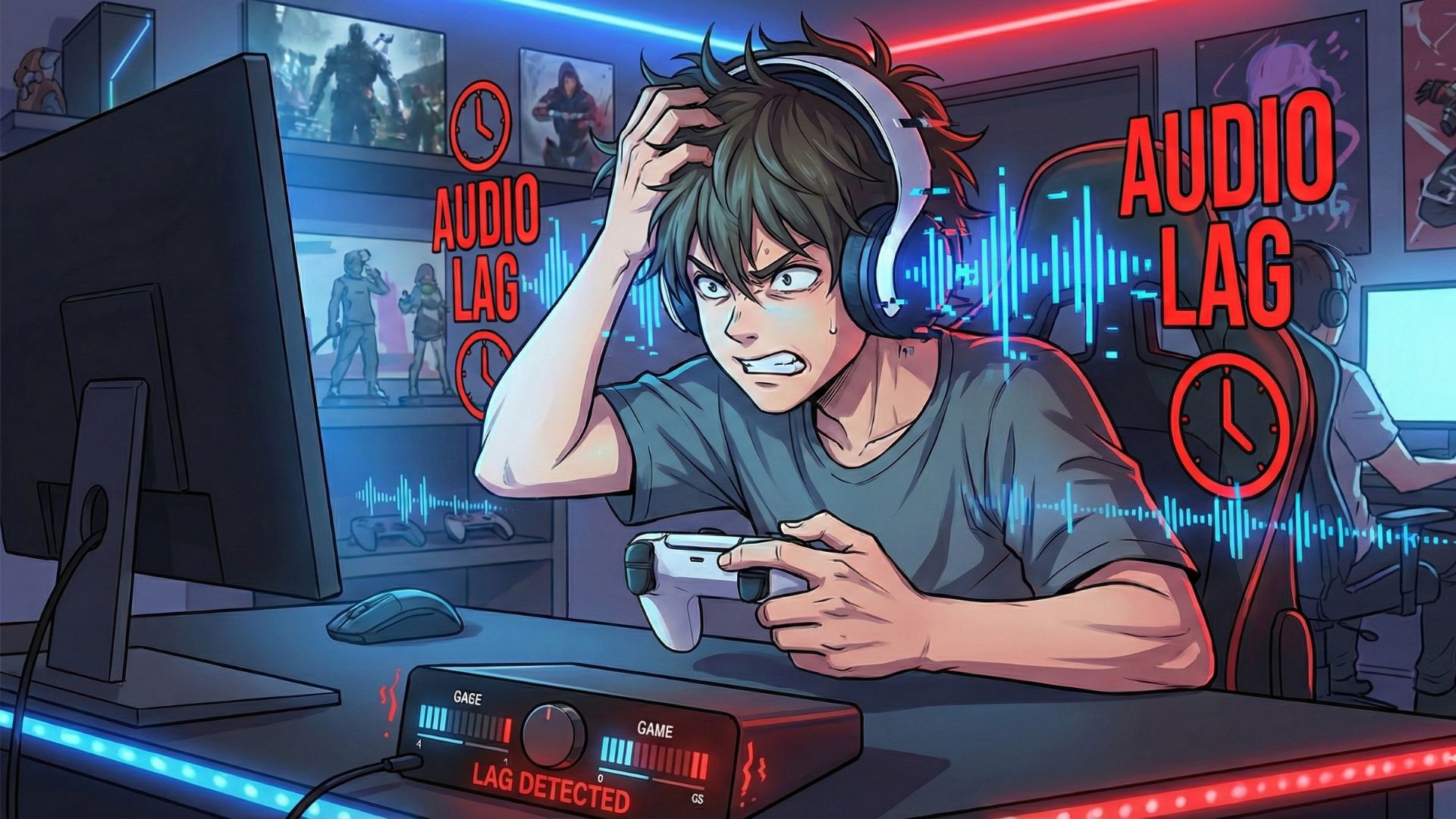
If you’ve ever joined a PS5 party and heard your own voice echoing back or your friends constantly tell you “your mic is too low” you’re not alone. Mic echo and low volume are two of the most common audio frustrations on PlayStation 5. The good news? They’re usually easy to fix mic echo once you know where to look.
This guide walks you through simple, practical steps to eliminate echo, boost your microphone volume, and make your party chat crystal clear.
1. Adjust Your PS5 Microphone Settings
The first place to check is your console’s audio settings. Sometimes the default mic level is too low or too sensitive.
Steps:
- Go to Settings
- Select Sound
- Choose Microphone
- Adjust the Input Volume (Mic Level)
Try slowly increasing the mic level until your voice sounds clear but not distorted. If you’re hearing echo, reducing the mic level slightly can also help.
2. Lower the TV or Headset Volume
This is a classic reason for echo your mic is picking up audio coming from your own speakers.
Fixes:
If you use TV speakers:
Lower TV volume or switch to a headset. TV speakers reflect audio into the mic easily, especially in small rooms.
If you use headphones:
Lower the headphone volume. Overly loud output can leak back into your mic, especially with open-back or budget headsets.
3. Use the Built-In Mic Test
The PS5 includes a real-time mic test that lets you hear exactly how others hear you.
Try this:
Go to Settings → Sound → Microphone → Adjust Microphone Levelthen speak into your mic. If you hear a faint delay or echo there, the problem is on your end.
4. Enable Noise Cancellation (If Available)
Some headsets have noise cancellation or sidetone controls.
Check your headset’s
- Companion app
- On-device switches
- Inline controls
Turning on noise cancellation or lowering sidetone reduces background pickup and helps stop echo.
5. Change Party Chat Audio Mix
Sometimes your voice is fine, but your friends’ chat audio is too loud, making you feel quieter.
To change the balance:
- Open the Control Center (PS button)
- Select Sound
- Adjust Voice Chat vs Game Audio slider
If your friends can’t hear you well, this adjustment might make your voice easier to pick out.
6. Check Your Headset Position
It sounds simple, but a misplaced mic is a common cause of echo and low volume.
Avoid:
- Putting the mic too close to your mouth
- Pointing it directly at your nose (breathing sounds!)
- Keeping it too far away or off to the side
Try placing the microphone about one to two fingers away from your mouth.
7. Update Your Controller or Headset
Outdated firmware can cause audio bugs on the PS5.
Update them:
- Plug your DualSense controller into the PS5 → wait for update prompt
- For wireless headsets (Sony Pulse, SteelSeries, Razer), update through PC software if required
This fixes compatibility issues and improves audio quality.
8. Try a Different Port or Restart the Console
If you’re using a wired headset:
- Unplug it and reconnect
- Switch to another USB or controller jack
- Restart your PS5 to clear temporary audio glitches
A simple reboot often solves stubborn microphone issues.
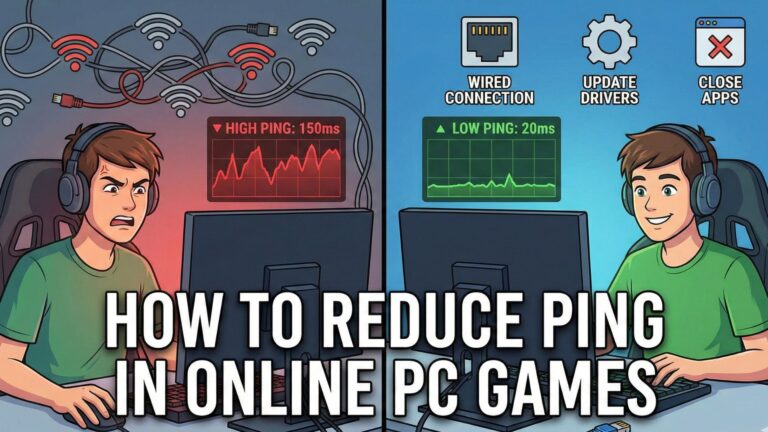
9. Check Your Internet Connection
Echo can also show up when your connection is laggy.
Try improving your connection by:
- Using a LAN cable instead of Wi-Fi
- Restarting the router
- Moving closer to your router
- Pausing large downloads
A smoother connection means less party chat delay and fewer echo problems.
Final Thoughts
Fix mic echo and low volume on PS5 usually takes only a couple of tweaks. Whether it’s adjusting your mic level, tweaking your headset, or updating your controller, these steps should help you get back to clean, clear party chat.