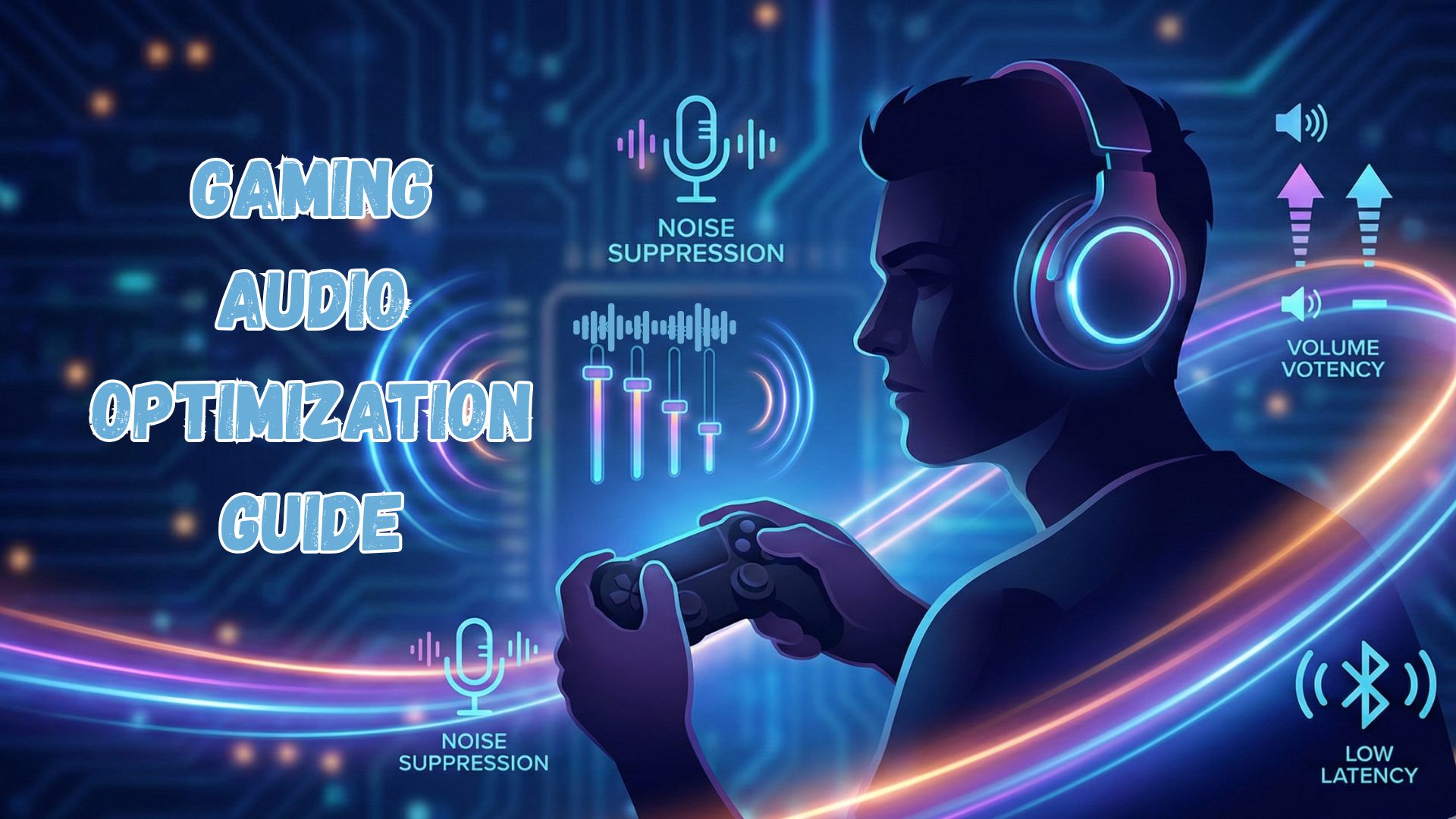
Gaming audio optimization is essential for improving awareness, reaction speed, and immersion. Moreover, when your audio setup is properly configured, you can hear footsteps earlier, recognize enemy directions faster, and enjoy clearer in-game communication. As a result, optimizing surround sound, noise suppression, volume levels, and EQ settings becomes one of the easiest ways to upgrade your gameplay without buying new hardware.
🎮 How to Use Surround Sound Tools for Better Gaming Awareness
Surround sound can dramatically improve positional awareness. Additionally, it helps you identify whether a sound is coming from the left, right, above, or behind you.
Choose the Right Type of Surround Sound
To begin with, you should understand the two main options:
- Virtual Surround Sound (7.1 / 5.1): Provided by software like Dolby Atmos, DTS:X, or Windows Sonic. Ideal for most gaming headsets.
- Hardware Surround Sound: Although more expensive, multi-driver gaming headsets offer greater accuracy.
Enable Surround Sound Correctly
- Windows: Settings → System → Sound → Select Device → Enable Dolby Atmos, DTS, or Windows Sonic
- PlayStation/Xbox: Audio Output → Enable 3D Audio or Surround Mode
- Android: Use apps like Dolby Atmos Mobile or Wavelet (if supported)
Fine-Tune Surround Sound for Awareness
- Boost mid-high frequencies (2–6 kHz) to enhance footsteps.
- Reduce heavy bass to prevent masking subtle sounds.
By applying these adjustments, your awareness increases significantly.
🎙 Best Mic Noise Suppression Tools for Clear In-Game Chat
Clear voice communication can change the outcome of a match. Therefore, noise suppression tools are extremely valuable, especially during intense team battles.
Recommended Noise Suppression Tools
- NVIDIA Broadcast: Removes background noise (keyboard, fan, traffic) extremely well.
- Krisp AI: Works with any microphone and cancels both inbound and outbound noise.
- Discord Built-In Noise Suppression (Krisp Integration): Lightweight and good for most users.
- OBS Noise Gate + Noise Suppression Filters: Ideal for streamers.
Best Practices for a Cleaner Voice
- Keep your mic 5–7 cm from your mouth.
- Use a pop filter for plosives.
- Reduce gain to avoid picking up room sounds.
With proper setup, your voice remains clean even during intense gaming sessions.
🔊 How to Boost Game Volume Without Distortion
Many players try to increase volume for better awareness, but this often leads to distortion. However, you can easily fix this with the right tools.
Use an Audio Enhancer
Tools like Equalizer APO, Boom 3D, or FxSound allow clean gain control.
Adjust EQ Instead of Increasing Volume
- Slightly raise mids for clarity
- Reduce muddy lows (~200 Hz)
- Boost presence (~4 kHz)
Avoid Maxing Out Hardware Levels
Always keep:
- System Volume: Below 90%
- Headset Volume Wheel: Below 80%
This minimizes clipping and keeps audio crisp, even at higher levels.
🎧 How to Fix Sound Delay in Bluetooth Earbuds While Gaming
Bluetooth audio delay (latency) is a common issue, especially in fast-paced games. Fortunately, you can fix or reduce it.
Use Low-Latency Codecs
- aptX Low Latency (aptX-LL)
- aptX Adaptive
- LC3 (LE Audio) – Latest and best for gaming
Make sure both your device and earbuds support the same codec.
Enable “Game Mode” on Supported Earbuds
Brands like Razer, Nothing, JBL, and OnePlus offer low-latency gaming modes reducing delay to 50–80 ms.
Switch to Wired When Necessary
For competitive FPS games, wired mode remains the most reliable option.
🎚 Best Equalizer Settings for FPS, Racing, and RPG Games
Different games emphasize different sound elements. Consequently, you should choose EQ settings based on the genre you’re playing.
🔫 FPS Games (COD, Apex)
Because footsteps and positional cues matter most, use these settings:
- Boost 2–6 kHz (footsteps & movement cues)
- Reduce 60–200 Hz (rumbling effects can mask footsteps)
- Slight boost at 8–10 kHz (air & clarity)
🏎 Racing Games (Forza, Need for Speed)
Since engine detail and road contact define immersion, try:
- Boost 80–250 Hz (engine depth)
- Slight boost 1–4 kHz (road/tire contact)
- Reduce 8–12 kHz if too harsh
🛡 RPG Games (Skyrim, Witcher, Elden Ring)
Because immersion is key, these settings improve atmosphere:
- Boost 250–500 Hz for warmth
- Boost 2–4 kHz for dialogue clarity
- Slight boost at 8–10 kHz for atmosphere
These adjustments make open-world environments feel richer and more cinematic.
⭐ Conclusion
Gaming audio optimization improves every part of your gaming experience. Additionally, when you combine surround sound tools, noise suppression software, clean volume boosting, and genre-specific EQ settings, the improvement becomes dramatic. Ultimately, with just a few adjustments, you can transform your headset’s performance and gain a competitive advantage immediately.